Simple Server Guide
A simple step-by-step guide for accessing and using the DOE lab server infrastructure.
Simple Server Guide
This guide provides step-by-step instructions for accessing and using the DOE lab server infrastructure.
Step 1: Get Server Access
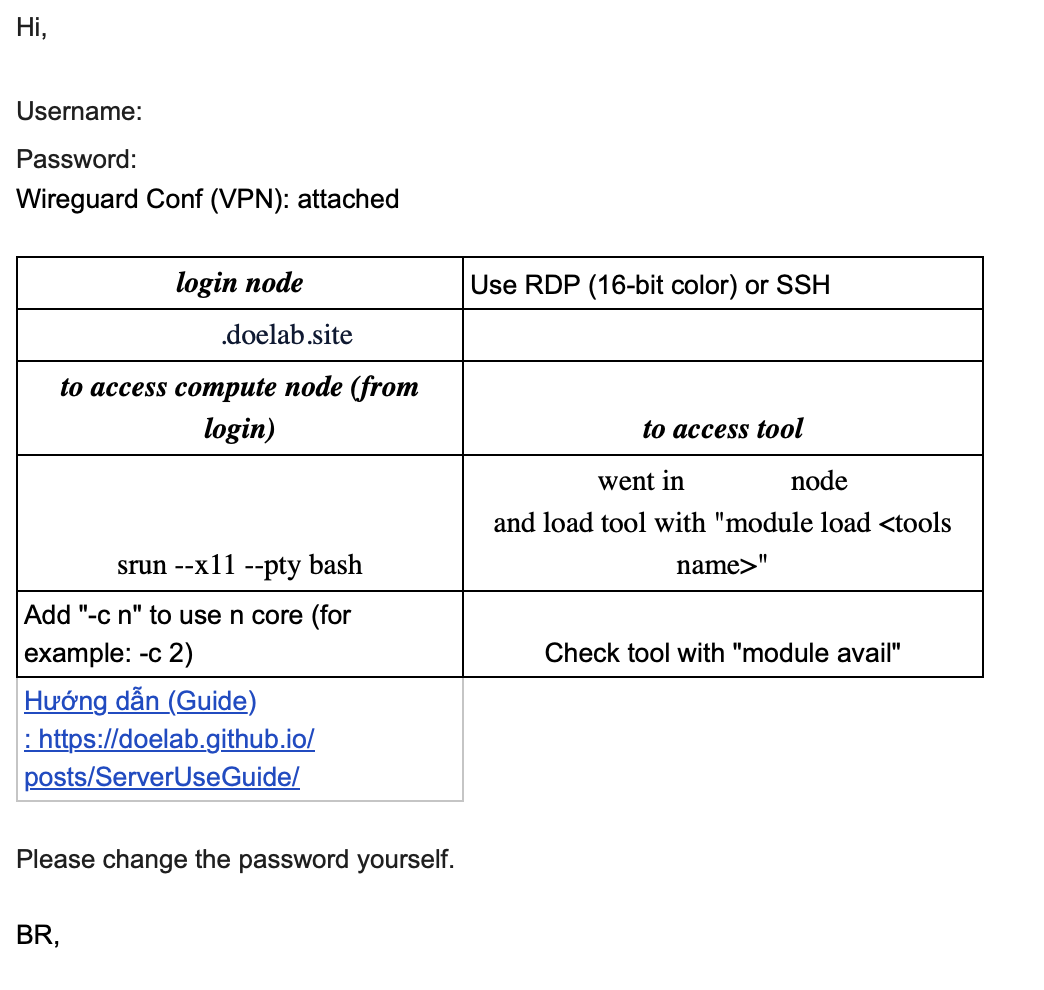
Receive your server access email containing:
- Username and password
- Wireguard configuration file
- Server domain name (e.g.,
anthony.doelab.site)
Step 2: Install and Configure Wireguard
- Install Wireguard on your system:
- Windows: Download from wireguard.com
- MacOS:
brew install wireguard-tools - Linux: Use your distribution’s package manager
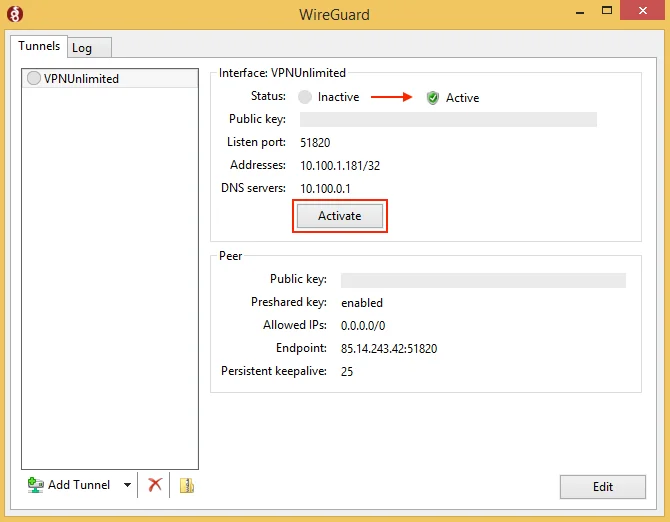
Add the provided configuration file to Wireguard
Activate the VPN connection
Note: Wireguard VPN work with HCMUT1/HCMUT2 WiFi networks. Remember to change your DNS to 1.1.1.1 or 8.8.8.8
Step 3: Connect via Remote Desktop
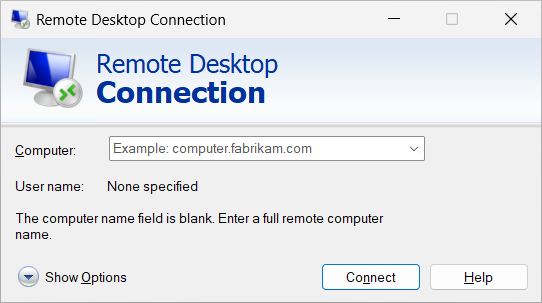
- Open your Remote Desktop client
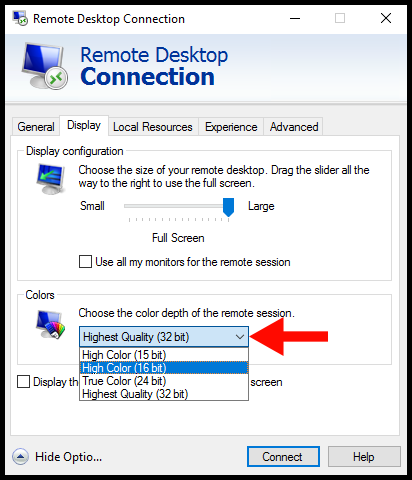
- Important: Set color depth to 16-bit
- Enter the server domain name (e.g.,
anthony.doelab.site) - Use your provided username and password
Step 3.1: Access Compute Node
In the server terminal, run:
1
srun --x11 --pty bash
You can see the shell prompt is changed to the compute node name.
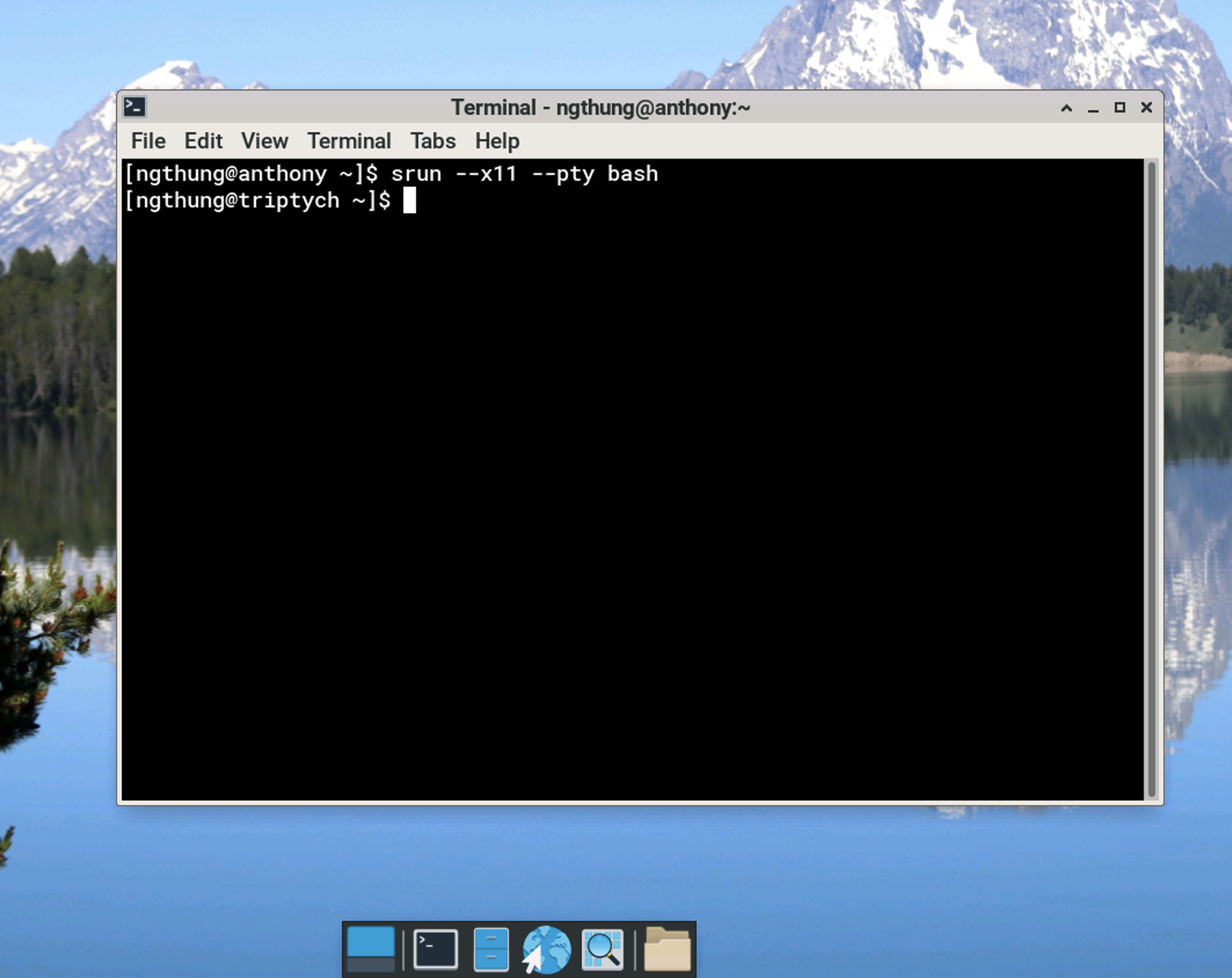
This connects you to an available compute node with 1 CPU. Use -c x to request x CPUs if needed:
1
srun --x11 --pty -c 2 bash  # Request 2 CPUs
Step 3.2: Manage Software Modules
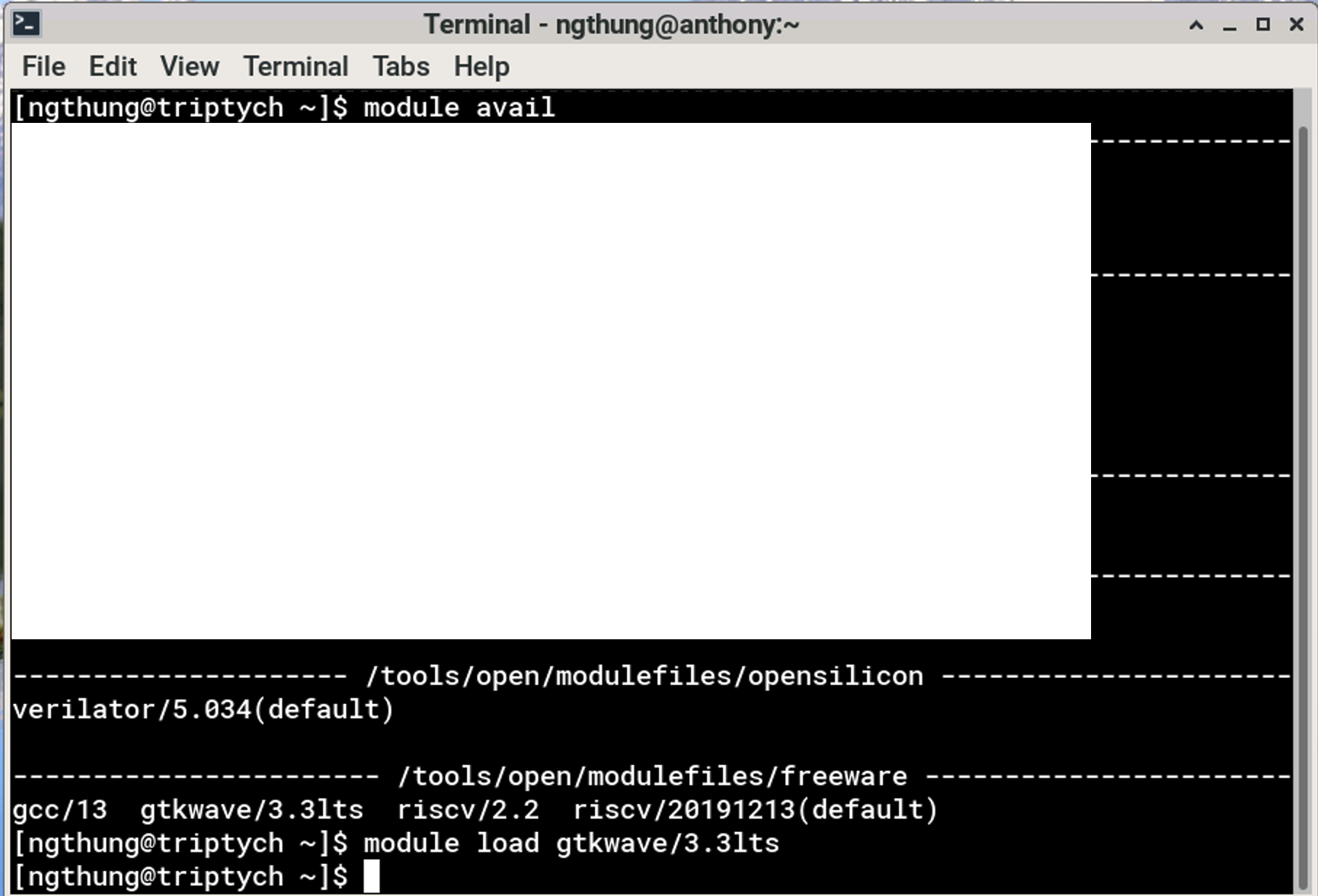
On the compute node, use these commands:
1
2
3
module avail          # List available software/tools
module load <tool>    # Load a specific tool
module unload <tool>  # Unload a specific tool
Step 4: Setup SSH Remote Development
Configure your preferred IDE (VSCode, etc.) on your laptop for SSH remote development:
- Enable SSH remote extension
- Connect to the server using SSH
- Code and use terminal directly from your IDE
See detail in this article from Microsoft.
Step 5: File Transfer with FileZilla
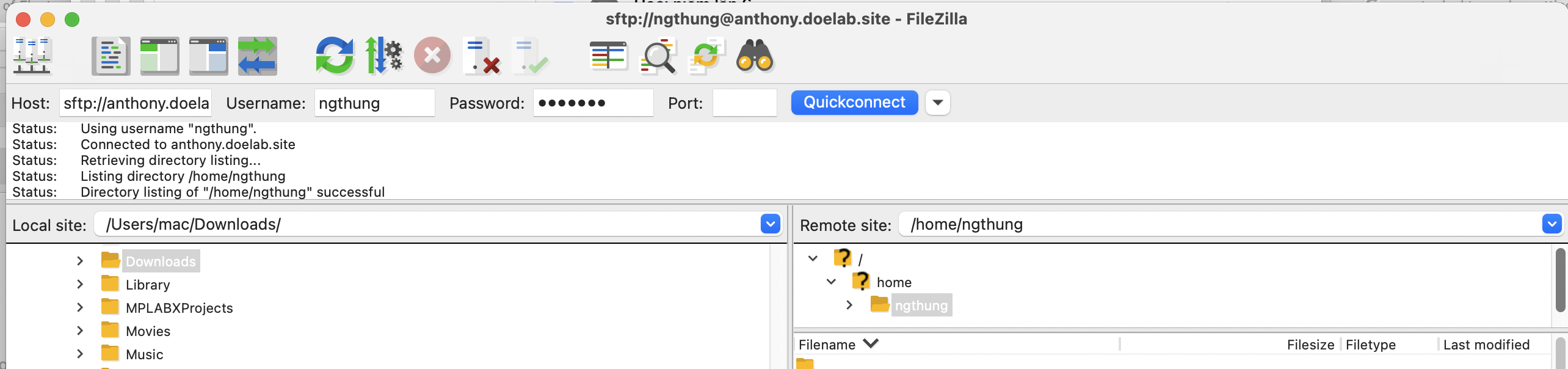
- Open FileZilla
- Connect to:
sftp://{server_name}(e.g.,sftp://anthony.doelab.site) - Enter username and password
- Leave port field empty
- Transfer files between your computer and server
Step 6: Troubleshoot RDP Issues
If your RDP session hangs (black screen or crash):
- Connect via SSH to the server
1
ssh {username}@{server_name}  # e.g., ssh
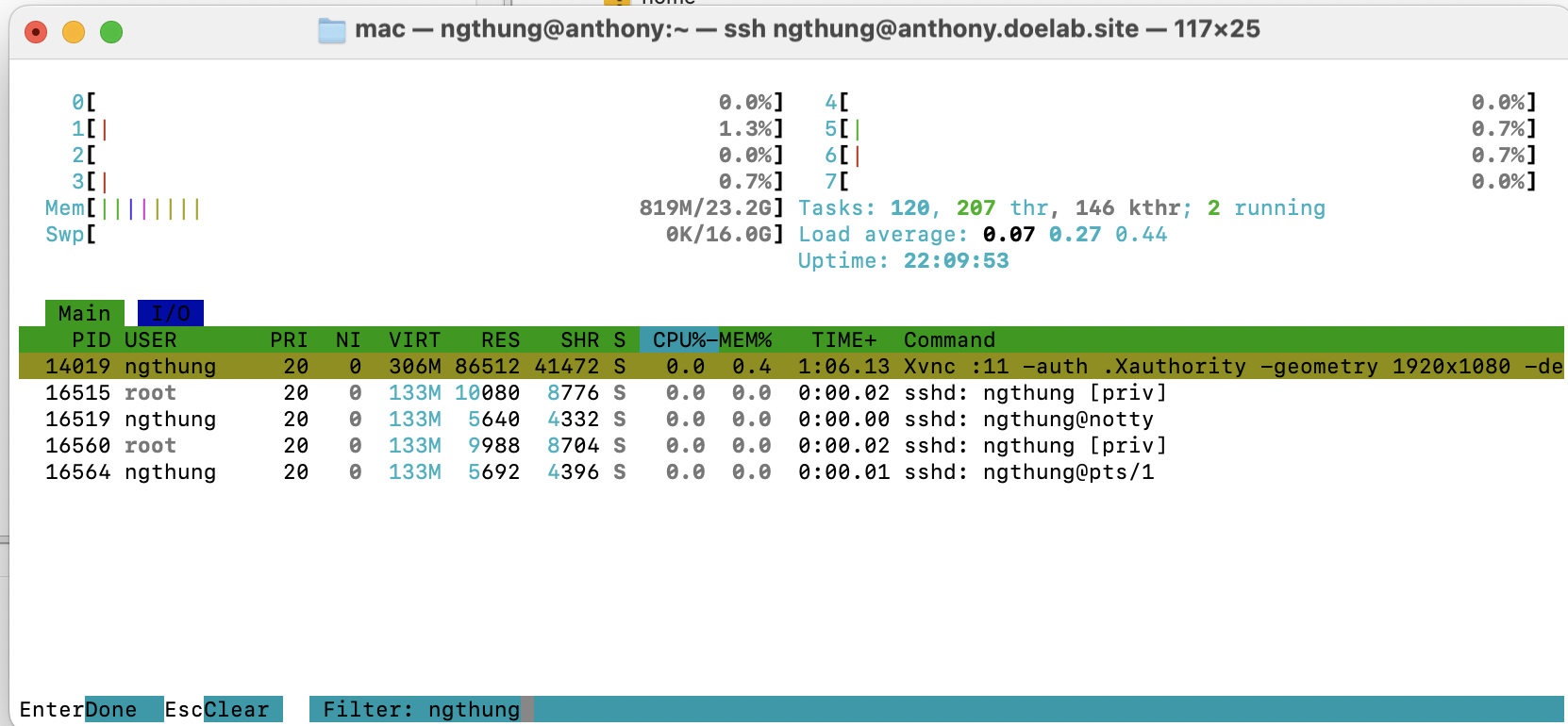
- Run
htopto view running processes
1
htop
- Find and kill your own xrdp session
Press F4 to filter processes, type xvnc to find your session, and press F9 to kill it.
For more information regarding how to use htop, you can refer to this article.
Step 7: Contact Administrator
If you encounter issues that cannot be resolved through the above steps, contact the administrator at: ngthung@hcmut.edu.vn
Quick Reference Commands
| Command | Description |
|---|---|
srun --x11 --pty bash | Connect to compute node (1 CPU) |
srun --x11 --pty -c 2 bash | Connect to compute node (2 CPUs) |
module avail | List available software |
module load <tool> | Load software module |
module unload <tool> | Unload software module |
htop | Monitor processes and kill sessions |